Integrating RPM Data into Epic and Cerner: The EHR Integration Playbook for Device Data

Software Development Expert
Writes about software development, scalable architecture, and practical problem-solving across modern digital products. Focuses on turning complex technical ideas into clear, real-world solutions.
Part of our complete guide to How Custom RPM Software is Redefining Chronic Care.
"Difficulties integrating third-party RPM data into the EHR" consistently ranks as the top challenge healthcare organizations face when deploying Remote Patient Monitoring programs. In a 2025 KLAS Research survey, 67% of health systems cited EHR integration as the primary barrier to RPM program expansion.
The core problem is deceptively simple: how do you take a blood pressure reading captured on a patient's kitchen counter at 7 AM and make it appear in the clinician's workflow inside Epic or Cerner as if it were any other vital sign?
Related case study: a wearable-to-EHR integration case study — our production build of this exact flow.
If you need hands-on help, explore our RPM data analytics integration services.
The answer involves navigating vendor-specific APIs, mapping LOINC codes to proprietary flowsheet identifiers, handling timezone conflicts between devices and EHR servers, and ensuring that RPM data is distinguishable from in-office measurements while remaining clinically accessible.
This guide provides the complete integration playbook for the two dominant EHR platforms — Epic and Oracle Health/Cerner — plus the FHIR-based approach that works across all modern systems.
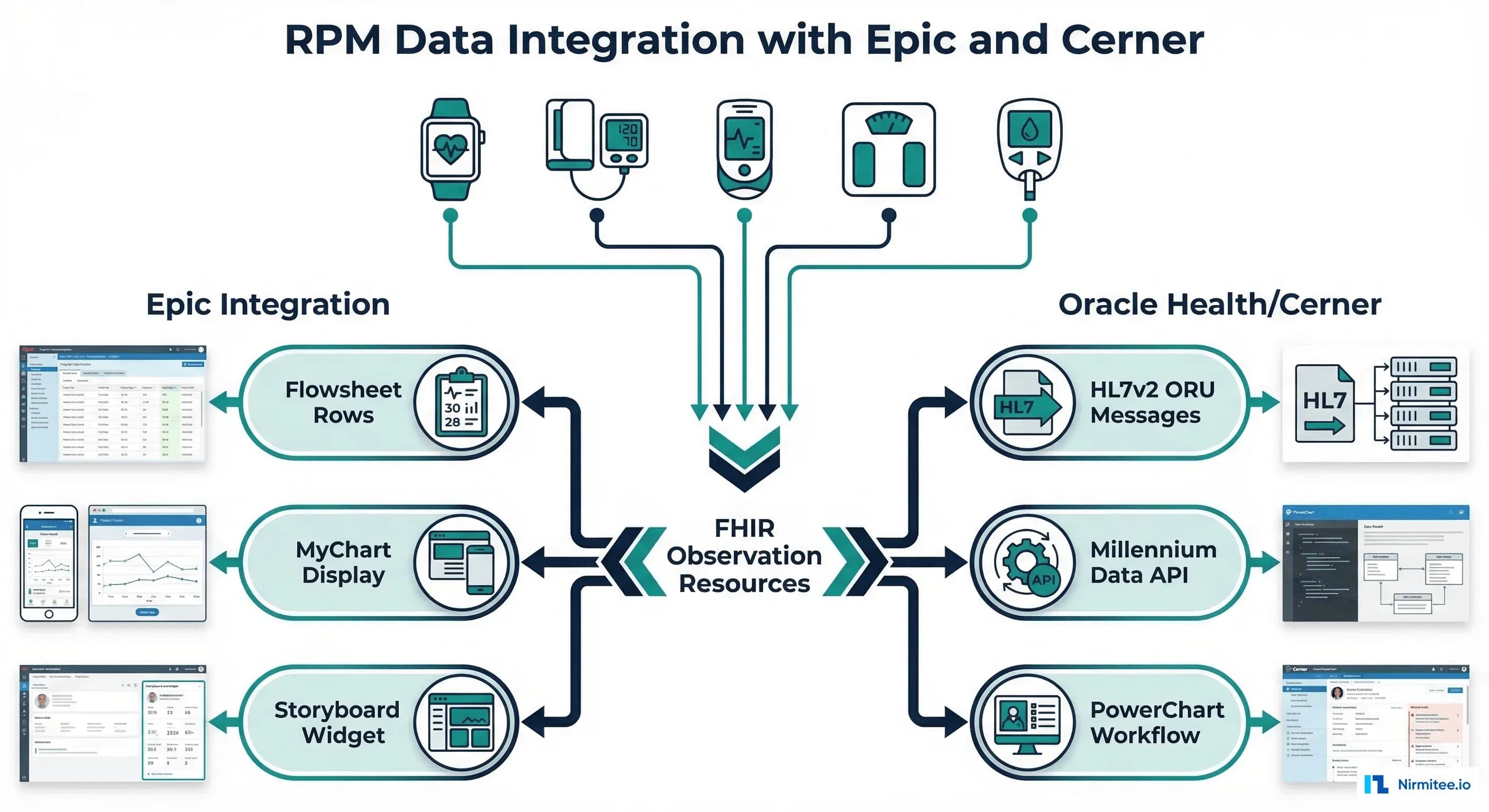
Epic Integration: Flowsheets, MyChart, and Storyboard
Epic offers three primary integration points for RPM device data. Each serves a different clinical user and workflow.
Integration Path 1: Flowsheet Rows for Device Vitals
Flowsheet rows are Epic's mechanism for storing time-series clinical data. Each vital sign type maps to a specific flowsheet row ID. RPM data must be written to designated "remote" flowsheet rows that are separate from in-office vitals — this allows clinicians to view RPM data alongside traditional vitals while maintaining clear provenance about the data source.
LOINC to Epic Flowsheet Mapping
| RPM Vital | LOINC Code | Epic Flowsheet Template | Display Location |
|---|---|---|---|
| Systolic Blood Pressure | 8480-6 | IP VITALS - REMOTE BP SYS | Vitals flowsheet, marked as "Remote" |
| Diastolic Blood Pressure | 8462-4 | IP VITALS - REMOTE BP DIA | Vitals flowsheet, marked as "Remote" |
| Blood Glucose | 2339-0 | IP GLUCOSE - REMOTE | Glucose management flowsheet |
| SpO2 | 2708-6 | IP VITALS - REMOTE SPO2 | Vitals flowsheet, marked as "Remote" |
| Body Weight | 29463-7 | IP VITALS - REMOTE WT | Vitals flowsheet, marked as "Remote" |
| Heart Rate | 8867-4 | IP VITALS - REMOTE HR | Vitals flowsheet, marked as "Remote" |
| Body Temperature | 8310-5 | IP VITALS - REMOTE TEMP | Vitals flowsheet, marked as "Remote" |
Critical detail: Epic flowsheet row IDs are organization-specific. The IDs shown above are template names — each Epic installation assigns unique internal IDs during build. Your integration team must work with Epic analysts at the target organization to obtain the correct flowsheet row IDs for their specific build.
# Python: Write RPM observation to Epic FHIR R4 API
import requests
from datetime import datetime

class EpicFHIRWriter:
    def __init__(self, base_url: str, access_token: str):
        self.base_url = base_url
        self.headers = {
            "Authorization": f"Bearer {access_token}",
            "Content-Type": "application/fhir+json"
        }

    def write_blood_pressure(self, patient_fhir_id: str,
                              systolic: float, diastolic: float,
                              device_id: str, timestamp: str) -> dict:
        observation = {
            "resourceType": "Observation",
            "status": "final",
            "category": [{
                "coding": [{
                    "system": "http://terminology.hl7.org/CodeSystem/observation-category",
                    "code": "vital-signs"
                }]
            }],
            "code": {
                "coding": [{
                    "system": "http://loinc.org",
                    "code": "85354-9",
                    "display": "Blood pressure panel"
                }]
            },
            "subject": {"reference": f"Patient/{patient_fhir_id}"},
            "effectiveDateTime": timestamp,
            "device": {"reference": f"Device/{device_id}"},
            "component": [
                {
                    "code": {"coding": [{"system": "http://loinc.org", "code": "8480-6"}]},
                    "valueQuantity": {"value": systolic, "unit": "mmHg",
                                      "system": "http://unitsofmeasure.org", "code": "mm[Hg]"}
                },
                {
                    "code": {"coding": [{"system": "http://loinc.org", "code": "8462-4"}]},
                    "valueQuantity": {"value": diastolic, "unit": "mmHg",
                                      "system": "http://unitsofmeasure.org", "code": "mm[Hg]"}
                }
            ]
        }

        response = requests.post(
            f"{self.base_url}/api/FHIR/R4/Observation",
            json=observation,
            headers=self.headers
        )
        response.raise_for_status()
        return response.json()
Integration Path 2: MyChart for Patient-Facing Data
MyChart is Epic's patient portal. When RPM data is properly written to flowsheet rows, it automatically appears in the patient's MyChart Health Summary under vitals. Patients can view their blood pressure trends, glucose readings, and weight alongside data collected during office visits.
For RPM programs, MyChart integration serves two purposes: patient engagement (patients can see their own data and trends) and billing compliance (CMS requires that patients have access to their RPM data).
Integration Path 3: Storyboard for Clinician Context
Epic Storyboard is the sidebar that appears when a clinician opens a patient's chart. It shows a summary of recent activity, upcoming appointments, and clinical highlights. RPM data can be surfaced here through a custom Storyboard activity that shows the most recent device readings and any active alerts.
Storyboard integration requires building an Epic App Orchard application. The application uses the SMART on FHIR launch protocol to receive patient context when the clinician opens a chart, then queries the RPM platform for that patient's latest data and displays it in the Storyboard panel. For implementation details, see our guide on implementing SMART on FHIR.
Oracle Health/Cerner Integration: HL7v2 ORU Messages and Millennium API
Oracle Health (formerly Cerner) supports two primary integration methods for external device data: traditional HL7v2 messaging and the modern Millennium Data API.
HL7v2 ORU Messages
The ORU^R01 (Observation Result Unsolicited) message is the standard mechanism for sending device results into Cerner. Many Cerner installations still prefer HL7v2 over FHIR for high-volume data ingestion because their interface engines (Cloverleaf, Mirth Connect) are already configured for HL7v2 routing.
// HL7v2 ORU^R01 message for RPM blood pressure reading
MSH|^~\&|RPM_PLATFORM|RPM_FACILITY|CERNER|HOSPITAL|20260316083000||ORU^R01^ORU_R01|MSG00001|P|2.5.1
PID|1||MRN12345^^^HOSPITAL^MR||Smith^John||19650415|M
OBR|1||RPM20260316-001|85354-9^Blood pressure panel^LN|||20260316083000
OBX|1|NM|8480-6^Systolic blood pressure^LN||142|mm[Hg]|90-120|H|||F|||20260316083000
OBX|2|NM|8462-4^Diastolic blood pressure^LN||91|mm[Hg]|60-80|H|||F|||20260316083000
OBX|3|NM|8867-4^Heart rate^LN||78|/min|60-100|N|||F|||20260316083000
OBX|4|ST|RPM_DEVICE_ID^Device Identifier^L||OMRON-VS-88421||||||F
OBX|5|ST|RPM_SOURCE^Data Source^L||REMOTE_PATIENT_MONITORING||||||F
Key fields in the ORU message that are specific to RPM data:
- OBX-8 (Abnormal Flags): H (High), L (Low), N (Normal) — based on clinical thresholds. Cerner uses these flags to trigger alerts in PowerChart
- OBX-14 (Date/Time of Observation): Must be the device measurement timestamp, not the time of message transmission. This is critical for accurate clinical trending
- Custom OBX segments: Include device identifier and data source indicator (RPM vs in-office) as additional OBX segments for provenance tracking
For organizations using Mirth Connect for HL7 integration, the RPM-to-Cerner ORU pipeline can be configured as a standard channel with source (RPM platform webhook), filter (validate required fields), transformer (map LOINC codes to Cerner result codes), and destination (Cerner MLLP endpoint).
Millennium Data API (FHIR R4)
Cerner Millennium supports FHIR R4 Observation writes through the Ignite/Code program APIs. The FHIR approach is identical to Epic FHIR writes — create an Observation resource with proper LOINC coding, patient reference, and device reference. The advantage of FHIR is a single integration codebase that works across both Epic and Cerner.
PowerChart RPM Workflow
Oracle Health PowerChart is the clinician-facing application. RPM data appears in the results section under the clinical category configured during interface setup. Best practice is to create a dedicated "Remote Monitoring" results category that aggregates all RPM vitals in a single view, separate from lab results and in-office vitals, but accessible from the same patient chart.
Common Integration Challenges and Solutions
Challenge 1: Device Timestamp vs. EHR Timestamp
A patient in the Eastern timezone takes a blood pressure reading at 8:30 AM ET. The device records the timestamp in UTC as 13:30. The EHR server runs in the Central timezone. If timezone conversion is not handled correctly, the reading could appear as 7:30 AM CT, 8:30 AM ET, or 1:30 PM UTC — three different times for the same measurement.
Solution: Normalize all timestamps to UTC at the point of ingestion in the RPM data pipeline. Store the patient's timezone as metadata. When writing to the EHR, convert to the timezone expected by the specific EHR installation (typically the facility's local timezone). Include the original device timezone in a FHIR extension for audit purposes. Our wearable app development guide applies the same rule to consumer devices such as Garmin and Apple Health.
Challenge 2: Duplicate Readings
Patients sometimes take multiple readings in rapid succession — two blood pressure readings 30 seconds apart, or accidentally triggering the scale twice. Without deduplication, both readings appear in the chart, potentially skewing trend analysis.
Solution: Implement a deduplication window per vital type: 2 minutes for blood pressure, 5 minutes for glucose (pre/post meal readings may be intentional), 1 minute for weight, 30 seconds for SpO2. If multiple readings arrive within the window, keep the last reading (most likely to be accurate as the patient re-positioned the device).
Challenge 3: Data Quality (Patient Measurement Errors)
RPM data quality is inherently lower than in-office measurements because there is no clinical staff supervising the patient. Common errors include: blood pressure taken with the cuff over clothing, glucose measured immediately after eating, weight measured with shoes and heavy clothing, pulse oximeter on a cold or wet finger.
Solution: Implement physiological plausibility checks before EHR write-back. Flag readings that are physiologically possible but likely erroneous (systolic BP of 220 in a patient whose baseline is 130 — possible but should be flagged for clinician review before auto-filing). Never auto-file flagged readings; route them to a clinical review queue.
Challenge 4: Where Does RPM Data Appear in the Chart?
The clinical workflow question is as important as the technical integration. If RPM data is buried in a results tab that clinicians rarely open, the integration is technically complete but clinically useless.
Best practices for clinical visibility:
- Display RPM vitals on the same vitals trend graph as in-office readings, with a visual indicator (different color or icon) showing the data source
- Show the most recent RPM reading and 7-day trend in the patient header or storyboard, so clinicians see it immediately upon opening the chart
- Include RPM data in the clinical decision support rules that fire during the encounter (e.g., if the last 3 RPM blood pressures averaged over 150, suggest medication review)
- Surface RPM adherence metrics (days with data, missed readings) alongside the vital signs, so clinicians can assess engagement
The FHIR-First Approach: One Integration for All EHRs
Rather than building separate integrations for Epic (flowsheets) and Cerner (ORU messages), a FHIR-first approach writes FHIR R4 Observations to a standardized API endpoint. Both Epic and Cerner support FHIR R4 Observation writes, making a single codebase possible.
FHIR Observation with Device Metadata and Provenance
// Complete FHIR Observation with device metadata for RPM write-back
{
  "resourceType": "Observation",
  "status": "final",
  "category": [{
    "coding": [{
      "system": "http://terminology.hl7.org/CodeSystem/observation-category",
      "code": "vital-signs",
      "display": "Vital Signs"
    }]
  }],
  "code": {
    "coding": [{
      "system": "http://loinc.org",
      "code": "85354-9",
      "display": "Blood pressure panel"
    }]
  },
  "subject": {"reference": "Patient/epic-fhir-12345"},
  "effectiveDateTime": "2026-03-16T08:30:00-05:00",
  "device": {
    "reference": "Device/omron-vitalsight-88421",
    "display": "Omron VitalSight BP Monitor"
  },
  "extension": [{
    "url": "http://example.com/fhir/StructureDefinition/data-source",
    "valueString": "remote-patient-monitoring"
  }],
  "component": [
    {
      "code": {"coding": [{"system": "http://loinc.org", "code": "8480-6", "display": "Systolic BP"}]},
      "valueQuantity": {"value": 142, "unit": "mmHg", "system": "http://unitsofmeasure.org", "code": "mm[Hg]"}
    },
    {
      "code": {"coding": [{"system": "http://loinc.org", "code": "8462-4", "display": "Diastolic BP"}]},
      "valueQuantity": {"value": 91, "unit": "mmHg", "system": "http://unitsofmeasure.org", "code": "mm[Hg]"}
    }
  ]
}

// Provenance resource for data source tracking
{
  "resourceType": "Provenance",
  "target": [{"reference": "Observation/rpm-bp-20260316-001"}],
  "recorded": "2026-03-16T08:30:05-05:00",
  "agent": [{
    "type": {"coding": [{"system": "http://terminology.hl7.org/CodeSystem/provenance-participant-type", "code": "author"}]},
    "who": {"display": "RPM Platform v3.2"}
  }],
  "entity": [{
    "role": "source",
    "what": {"display": "Omron VitalSight BLE transmission, Device ID: VS-88421"}
  }]
}
Integration Timeline by EHR Vendor
| Phase | Epic (App Orchard) | Oracle Health/Cerner (Code) | FHIR-Only EHRs |
|---|---|---|---|
| Registration/Enrollment | 2-4 weeks | 1-2 weeks | 1 week |
| Sandbox Development | 3-4 months | 3-4 months | 2-3 months |
| Integration Testing | 4-6 weeks | 3-4 weeks | 2-3 weeks |
| Vendor Review/Approval | 4-8 weeks | 2-4 weeks | 1-2 weeks |
| Customer Go-Live | 2-4 weeks per site | 2-3 weeks per site | 1-2 weeks per site |
| Total | 6-9 months | 4-7 months | 2-4 months |
Epic's longer timeline is primarily due to the App Orchard review process, which involves a detailed security assessment, clinical workflow review, and EHR interaction validation. Cerner's Code program is somewhat faster but still requires formal enrollment and validation. For a deeper discussion of EHR integration timelines and challenges, see our comprehensive guide on how EHR integration unlocks interoperability.
Pre-Launch Integration Checklist
Before going live with RPM-to-EHR data integration, verify the following:
| Category | Checklist Item | Status |
|---|---|---|
| Technical | FHIR API credentials configured and tested in production | |
| Technical | Flowsheet/result mapping validated for all vital types | |
| Technical | Timezone handling tested across device, server, and EHR | |
| Technical | Duplicate detection enabled with appropriate windows | |
| Technical | Error handling, retry logic, and dead-letter queue configured | |
| Technical | PHI encryption verified end-to-end (device to EHR) | |
| Clinical | Clinical workflow documented and approved by CMIO | |
| Clinical | Nursing and provider staff trained on RPM data location in chart | |
| Clinical | Alert thresholds configured and validated by clinical team | |
| Clinical | Escalation protocols defined for critical RPM alerts | |
| Clinical | Patient consent captured and documented in EHR | |
| Clinical | Go-live date communicated to all clinical stakeholders |
Sources: Epic App Market Integration Guide, Oracle Health Code Program Documentation, HL7 FHIR R4 Observation Resource Specification, KLAS Research "Remote Patient Monitoring 2025" Report, CMS Interoperability and Patient Access Final Rule.
Ready to scale?
Talk to our healthcare engineering team about building, integrating, and shipping faster.
Frequently Asked Questions
Can I write RPM data to Epic without going through App Orchard?
Should I use FHIR or HL7v2 for Cerner integration?
How do I distinguish RPM data from in-office vitals in the EHR?
What if the patient's MRN in our RPM system doesn't match the EHR MRN?
How do I handle RPM data when the EHR is down for maintenance?
Do RPM integrations require a separate BAA with the EHR vendor?